Hi @eiwqoucwq, there’s a simple explanation for what’s happening. I’ll clarify how Pickaxe organizes your files:
The Knowledge Base in Pickaxe is shared and accessible by all Pickaxes within the same Studio. By default, any Pickaxe you create is automatically stored inside a Studio. This is why even after deleting your tool, the files remained—they belong to the Studio’s shared storage, not to the individual tool itself.
To fix this, you need to delete the files directly from the Studio’s Knowledge Base.
Here is the step-by-step solution:
- Go to your main dashboard and click on the Studio that contains your tool.
- On the menu on the left side of the screen, find and click the Knowledge base button.

You will now see the list of all files for that Studio. To delete files:
- First, click the checkbox to the left of each file you want to remove.
- Once you select the files, a red trash can icon will appear at the top of the list. Next to the icon, it will say “Delete [X] file(s)”.
- Click that red trash can icon to permanently remove the selected files.
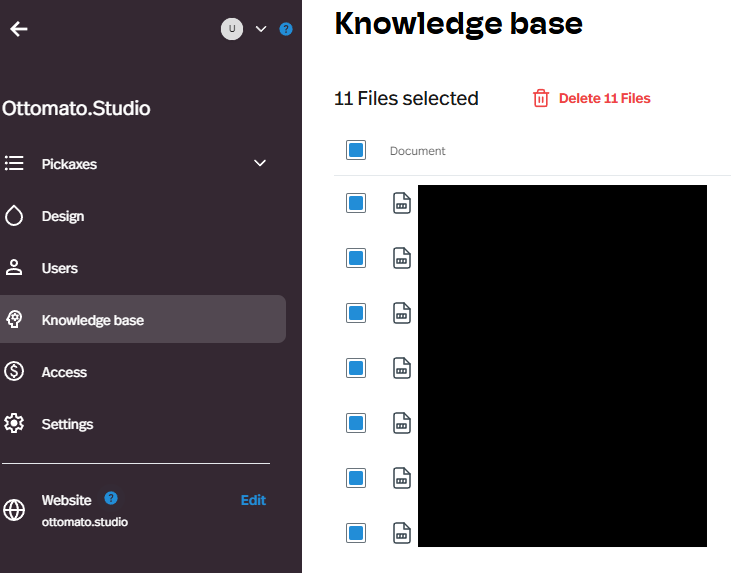
Once you delete the old files from the Studio, you will free up your 3-document limit and be able to upload your new documentation.
Hope that makes sense and gets you back on track!