I have a Pickaxe that I want to access real-time water data and weather data from sources that have APIs to use in its inferencing. I’d love feedback on how to best to do this. For example through a custom action, or using the Basic Web Hook community action or some other approach?
I would create a custom action that hits the two API endpoints you need (on the assumption you only need 2).
If you need access to multiple end points the best practice these days would be to build an MCP server wrapped around your end points. As this might prove to be quite technical, one no-code workaround is to create n scenarios in Make.com each triggering an endpoint (you can use the HTTP modules for this).
You can then easily create your Make MCP server and connect it to your Pickaxe.
@netmstr You don’t need a webhook when connecting MCP servers to Pickaxe. Only use the MCP server under the Actions tab. The server will handle the communication of parameters between Pickaxe and Make
Ohhh will the pickaxe be able to pick up the output from the mcp server eg if i ask pickaxe about the content of the google sheet which is connected to a mcp server
Hmm I seems to have a trouble with pickaxe connecting to MCP server ( in this case a make.com mcp server )
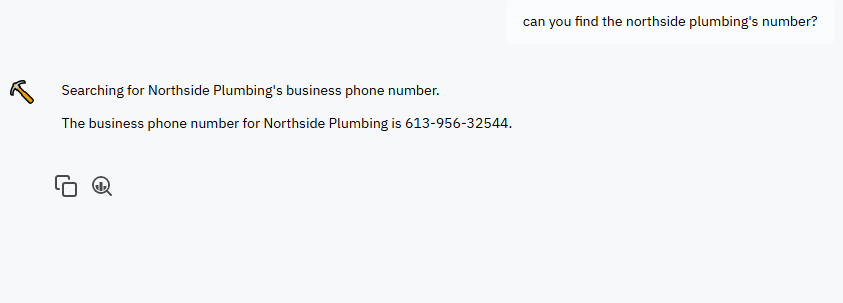
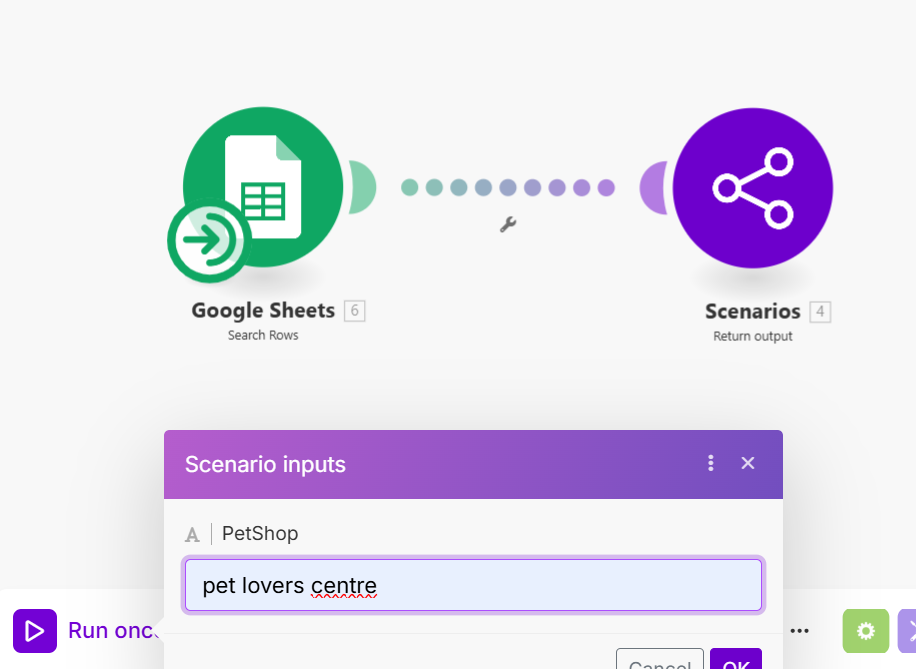
I am asking pickaxe to provide me the tel no of a pet shop which is stored on a google sheet. The scenario in make.com has a google sheet as trigger. It should take the pet shop name from pickaxe and search thru the google sheet to find the tel no
Somehow it just doesn’t trigger. this is the error I got, Network Error
I recommend using the search rows module. In case you have not done so, you also need to set the scenario on demand and add the scenario input and output.
Let me explain why you are running into this issue @netmstr because it is a crucial point of clarification for anyone building with Pickaxe and Make.
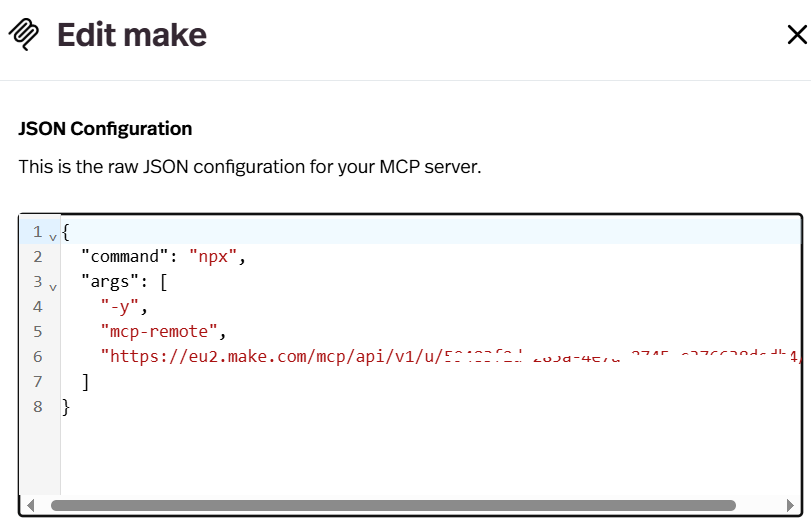
To put it simply, the npx command structure you’re seeing is not necessary for connecting a Make.com MCP server to a Pickaxe agent.
Let’s further clear this up with a simple analogy. There are two ways to connect to the Make.com server, and the right one depends on the tool you’re using.
The “Direct Dial” Method: Tools in the cloud, like Pickaxe itself, can connect directly to Make. For this, you just need the simple URL. This is the standard and most efficient method. { "mcpServers": { "make": { "url": "https://<MAKE_ZONE>/..." } } }
The “Operator” Method: Some tools, usually ones running on a desktop, can’t connect directly. They need a helper to make the connection for them. The npx command is that helper.{ "command": "npx", "args": [...] }
Both methods can work. It depends on your use case. You should try both and see which one works specifically when working with Make MCP servers.
If neither JSON code works, then the next step is to check your Pickaxe agent’s core prompt.
The MCP server makes your Make scenario available as a “tool,” but your Pickaxe agent needs a clear, direct instruction in its prompt telling it when and how to use that tool. If the instruction is missing or unclear, the agent can fail when it tries to act, which can cause a network error.
For example, if your Make scenario is named get_user_details, your Pickaxe prompt needs a specific instruction like this:
When the user asks for their details, you must use the 'get_user_details' tool to find the information.
**Remember to switch around your JSON codes when configuring your MCP server connection in Pickaxe and try again after editing your prompt.
This is a weird issue. Yesterday when it’s not working, I thought make.com might be confused by many active scenario that’s why it didn’t work. Sure enough I switch off all other scenario except the the mcp scenario and IT WORKS !
But today when I retested make.com with multiple active scenario, it’s also working ! Perhaps they have fixed it
@netmstr nice work so far! Yes, the JSON code for the MCP server works.
Some guidance on Connected Actions that can help you in the long run:
As a general rule of thumb, you should not connect too many actions unless your Role (core prompt), Trigger action prompts, and Action code are all aligned (synchronized in sequential order). It’s better to outsource as many tasks as possible to a Make scenario and hook up a Make MCP server to your Pickaxe. It’s a much cleaner and leaner setup.
Establish a Clear Prompt Hierarchy. The best way to manage multiple actions is to think of your prompts as having two levels.
The main Role (your core prompt) acts as the CEO, defining the agent’s overall goal and workflow.
The Trigger Prompt for each individual Action acts as a manager, giving a specific, explicit command for when that one tool should be used.
When the “CEO” and “managers” are aligned, your agent will execute tasks predictably.
Regarding exploring the answer tool:
Are you trying to access it in the back end while testing or while in the UI (front end)?
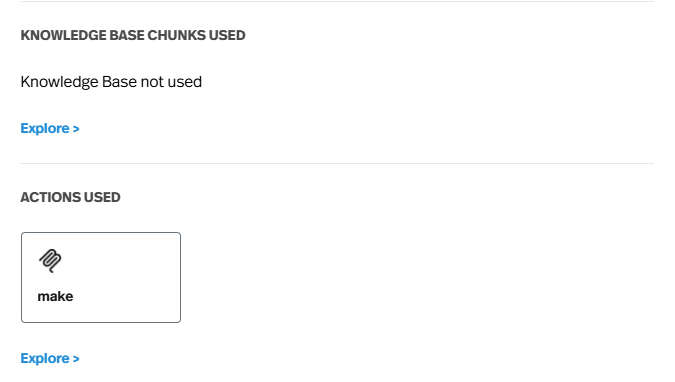
The detailed debugging view that shows which specific action was triggered (often represented by a magnifying glass icon called ‘Message Insights’) is typically only visible to you, the builder, inside the right-hand test panel. This feature is not visible to end-users on the final, deployed version of the tool.
Btw, I am based in Bangkok, Thailand. Time zone difference between us is 1 hour. Feel free to DM me any time we can connect further. selamat tinggal